

Key Takeaways
- Running system updates immediately after first boot closes known security vulnerabilities.
- Creating a dedicated user account protects your data and keeps guest access separate.
- Installing a password manager early makes every subsequent account setup more secure.
- Backing up your setup state before installing third-party software gives you a clean restore point.
- Both Windows and macOS include built-in security tools that are worth enabling on day one.
What you will need
Why First-Time Setup Matters More Than You Think
Unboxing a new computer feels straightforward - plug it in, turn it on, and you're done. In practice, the decisions you make (and skip) in the first hour shape how secure, organised, and reliable that machine will be for years. Most setup frustration comes not from complexity but from doing things in the wrong order: installing software before updates, using an admin account for everything, or skipping a backup until the first crisis.
This guide applies to both Windows 11 and macOS. Where the steps differ between operating systems, both paths are noted. If you're still deciding what machine to buy, the beginner's guide to buying a computer is a useful starting point before you open the box.
What you will need
What You'll Need Before You Start
Gathering a few things before powering on prevents interruptions mid-setup. The list is short, but missing any item - especially your Wi-Fi password - can stall you at a critical point in the wizard.
Wi-Fi network credentials
Required to connect the computer during initial setup and download updates.
Microsoft Account or Apple ID
Used to activate the operating system, sync settings, and access the app store.
Password manager app
Stores and generates strong, unique passwords for every new account you create.
External hard drive or cloud storage subscription
Provides a backup destination before you install new software or change system settings.
If you're bringing over data from an old machine, review what needs to move before you begin. The same logic that applies to switching phones - backing up contacts, files, and app data - applies equally to computers.
Step-by-Step Setup Walkthrough
Follow these steps in order. Each one builds on the last, and skipping ahead - particularly past updates and backups - creates problems that are harder to fix later.
Power on and complete the initial setup wizard
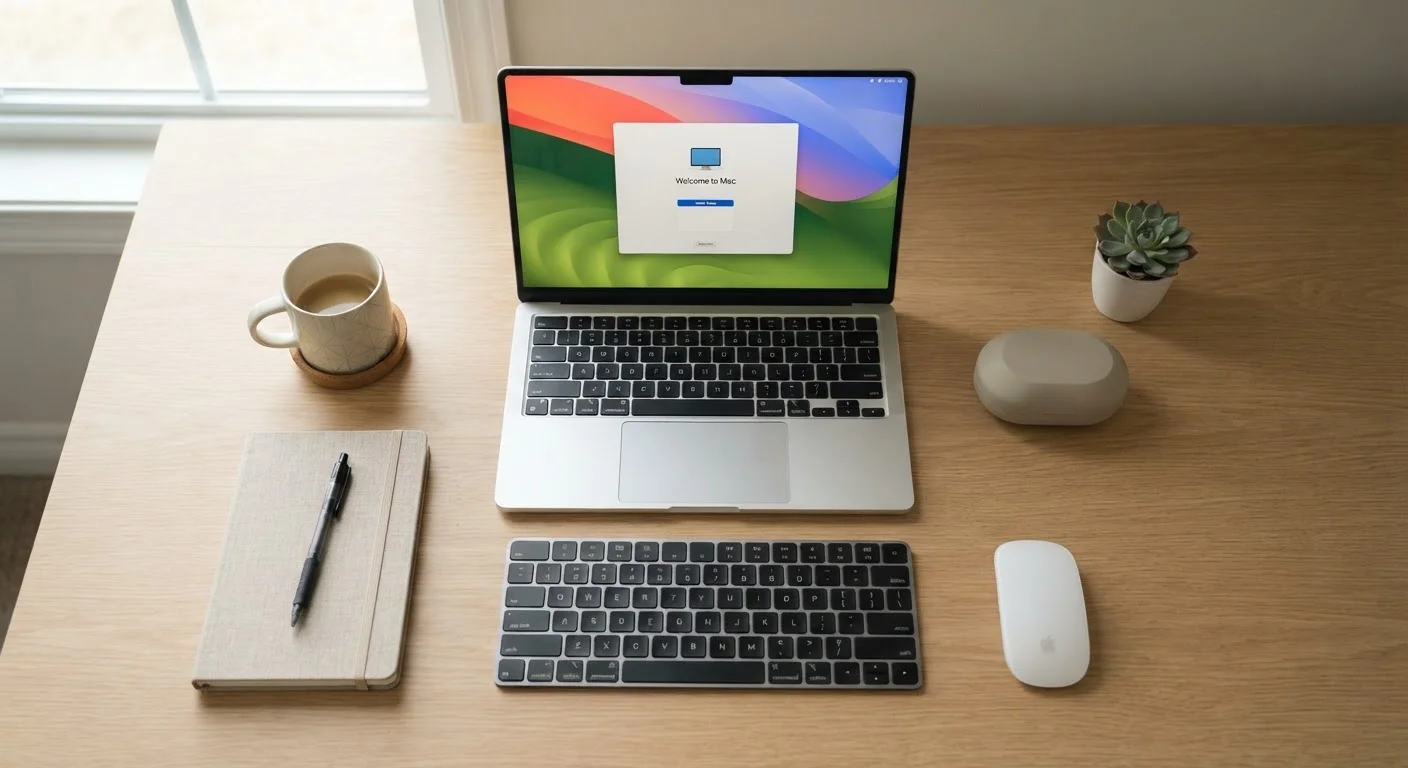
Both Windows 11 and macOS walk you through a setup wizard on first boot. Follow the on-screen prompts to select your language, region, and keyboard layout. Connect to your Wi-Fi network when asked - this allows the wizard to apply critical patches before you reach the desktop.
Sign in with or create your OS account
Windows will prompt you to sign in with a Microsoft Account; macOS asks for your Apple ID. These accounts tie your license, device backup, and app purchases together. If you prefer a local account on Windows, look for the small "Sign-in options" or "Offline account" link at the bottom of the sign-in screen - this option exists but Microsoft does not prominently advertise it.
Run all available system updates
On Windows, open Settings → Windows Update → Check for updates. On a Mac, go to System Settings → General → Software Update. Install everything listed, then restart and check again - it often takes two rounds to clear the queue. Updates patch security vulnerabilities that existed before your machine left the factory.
Review and configure privacy and security settings
Navigate to your privacy settings panel and review which apps and system processes can access your location, microphone, and camera. On Windows, check Settings → Privacy & Security. On macOS, go to System Settings → Privacy & Security. Disable access for any service you don't recognise or need. Enable the built-in firewall - it is off by default on some Windows configurations.
Create a standard (non-admin) user account for daily use
Running your computer as an administrator every day means any malicious software that slips in also has admin-level access. Create a second account with standard privileges for your everyday work and browsing. Reserve the admin account for installing software and changing system settings. On Windows: Settings → Accounts → Family & other users. On macOS: System Settings → Users & Groups.
Set up a backup before installing anything else
Before you add a single app, create a baseline backup. Windows users can use File History or the built-in backup to an external drive. Mac users should enable Time Machine. Cloud options like OneDrive (Windows) and iCloud (Mac) are built in and provide off-site redundancy. A clean backup taken right now is invaluable if something goes wrong during later software installs.
Install essential software and a password manager
Download software only from official developer websites or your OS's built-in app store. Install a password manager first - it will make setting up every subsequent account more secure. Then add your browser of choice, productivity tools, and anything else you need. Avoid bundled software installers that offer extra toolbars or utilities during installation; uncheck those boxes carefully.
Keep a Setup Log for Future Reference
As you work through setup, jot down what you installed, what settings you changed, and what accounts you created. A simple text file or note saved to cloud storage takes minutes to maintain and becomes invaluable if you ever need to set up a replacement machine or troubleshoot an issue months later.
Bloatware Comes Pre-Installed on Many PCs
Many Windows computers - especially those from large consumer brands - ship with trial software, games, and promotional apps pre-installed. These can slow startup times and occasionally create security exposure. After completing your initial setup, review your installed programs list and uninstall anything you did not choose to put there. On macOS this is far less common, but still worth a check.
After Setup: What to Do in the First Week
Once your machine is updated, secured, and backed up, a few habits will keep it running well. Set updates to install automatically so you don't fall behind. Review your backup schedule - daily incremental backups are reasonable for most people. And if you're adding smart home devices to your setup, the guide to setting up a smart speaker walks through connecting your first device cleanly.
Never Skip System Updates on a New Machine
Computers can sit in warehouses or on store shelves for months before they reach you. During that time, security researchers discover - and attackers exploit - vulnerabilities in the operating system. Skipping updates on day one leaves your machine exposed from the moment you connect to the internet. This is not optional: run updates before you log into any accounts or enter any personal information.
A well-configured computer from day one requires far less maintenance over time. The steps above are a one-time investment that pays back every time you sit down to use the machine.