

Key Takeaways
- All-in-one desktops eliminate cable clutter and reduce desk footprint significantly compared to tower setups.
- Most components - RAM, storage, GPU - are soldered or proprietary, making upgrades difficult or impossible.
- Repair costs can be higher because technicians must disassemble the display to access internal hardware.
- They suit light-to-moderate workloads well, but demanding tasks like video editing or gaming may expose performance ceilings.
- Buyers should treat an all-in-one as a long-term commitment and configure it carefully at purchase.
Dramatically reduces desk clutter and cable mess
With no separate tower, power brick, or data cables running between components, the workspace stays genuinely clean. This is a consistent advantage in compact rooms or dual-purpose spaces.
Simple, fast setup out of the box
Most users can have an AIO fully operational within minutes of unboxing - plug in power, connect a keyboard and mouse, and go. There's no cable routing, no component installation, and no compatibility checking required.
Integrated display is often high-quality
Manufacturers typically spec capable panels because the screen is central to the product's appeal. Many AIOs ship with displays that offer good resolution and color reproduction relative to their price tier.
Quiet operation in most configurations
Compact cooling systems and modern low-power processors allow many AIOs to run near-silently under typical workloads, which matters in quiet home or office environments.
Single-unit design simplifies moving and relocation
Relocating an AIO means moving one unit, not disassembling a tower, bundling cables, and transporting a separate monitor. For users who rearrange spaces frequently, this is a practical time-saver.
RAM and GPU are often impossible to upgrade
Many current AIO designs solder memory directly to the motherboard, permanently fixing the RAM capacity. Discrete graphics upgrades are typically not possible at all, which limits long-term performance headroom.
Repairs require disassembling the display panel
Accessing internal components means removing the screen assembly, a process that's technically complex and risks damaging the display. Professional repair labor costs tend to be higher than for tower desktops.
Sustained heavy workloads can trigger thermal throttling
Tight internal packaging limits airflow, so the processor may reduce its clock speed under extended intensive tasks to manage heat. This can result in inconsistent performance during long rendering or processing sessions.
A single failure can take out the whole unit
If the display fails, you lose the computer too - and vice versa. In a tower setup, a dead monitor is a monitor problem; in an AIO, component interdependence means one failure has broader consequences.
Higher cost per unit of performance than tower equivalents
The engineering required to miniaturize components and integrate them behind a display adds cost. For the same budget, a traditional tower typically delivers more raw processing and graphics performance.
Our Verdict
All-in-one desktops make a genuine case for themselves when desk space is limited and aesthetics matter - they're tidy, self-contained, and capable enough for a wide range of everyday tasks. The trade-off is real, though: limited upgradeability and higher repair complexity mean the configuration you buy is largely the one you'll live with for the machine's entire lifespan. Go in with clear eyes about your workload and a realistic view of how long you expect the hardware to stay relevant.
Best suited for home users, students, or small-office workers who prioritize simplicity and aesthetics over long-term hardware flexibility.
What Makes an All-in-One Different
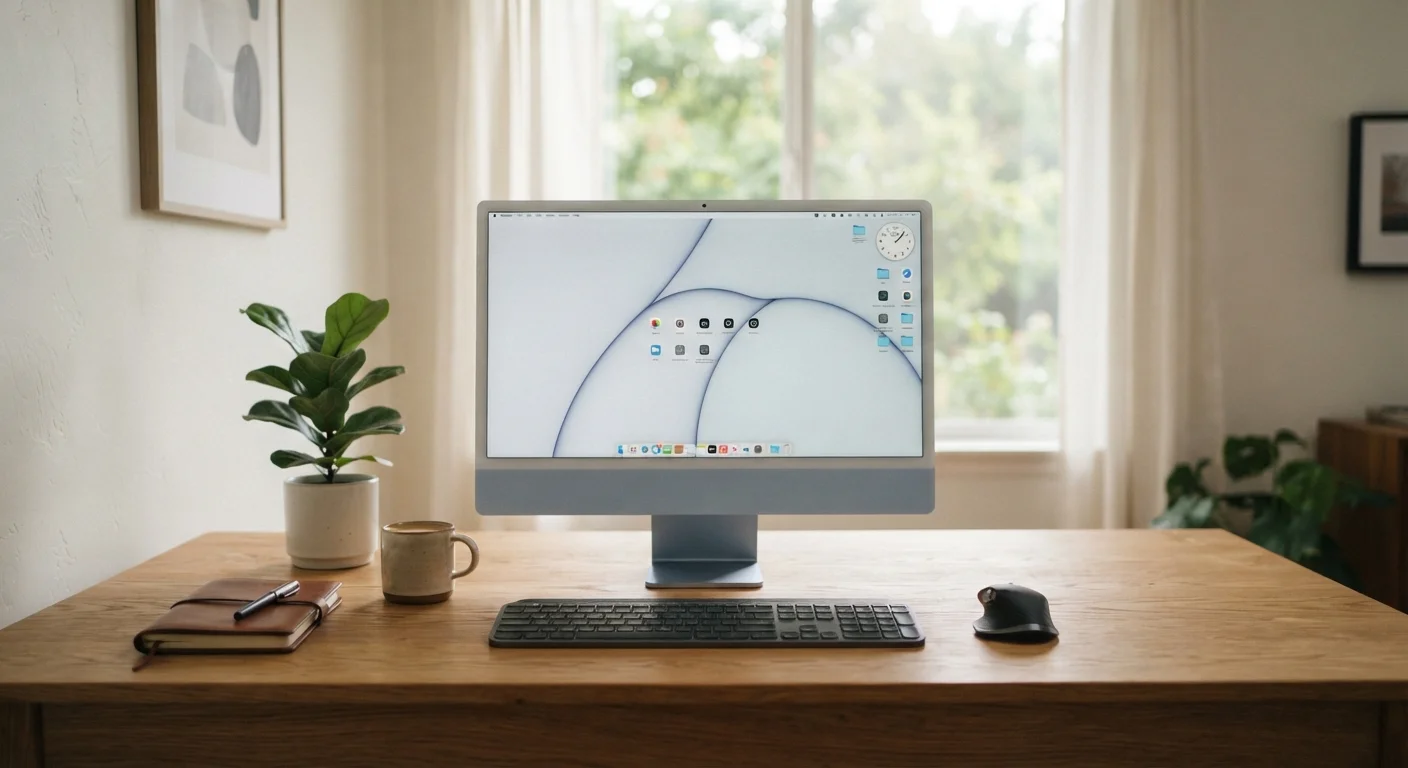
An all-in-one (AIO) desktop integrates the computer's processor, memory, storage, and other components directly behind the display - no separate tower, no rats' nest of cables running across the desk. The result is a single-unit machine that plugs in, powers on, and takes up roughly the same footprint as a monitor alone.
That engineering choice is both the appeal and the constraint. Unlike a traditional tower desktop, where components sit in an accessible chassis designed for swapping parts, an AIO packages everything tightly around the screen. Understanding that distinction upfront shapes every other trade-off on this list. If you're still weighing form factors broadly, the laptop vs. desktop comparison covers the wider picture.
The Real Advantages
Dramatically reduces desk clutter and cable mess
With no separate tower, power brick, or data cables running between components, the workspace stays genuinely clean. This is a consistent advantage in compact rooms or dual-purpose spaces.
Simple, fast setup out of the box
Most users can have an AIO fully operational within minutes of unboxing - plug in power, connect a keyboard and mouse, and go. There's no cable routing, no component installation, and no compatibility checking required.
Integrated display is often high-quality
Manufacturers typically spec capable panels because the screen is central to the product's appeal. Many AIOs ship with displays that offer good resolution and color reproduction relative to their price tier.
Quiet operation in most configurations
Compact cooling systems and modern low-power processors allow many AIOs to run near-silently under typical workloads, which matters in quiet home or office environments.
Single-unit design simplifies moving and relocation
Relocating an AIO means moving one unit, not disassembling a tower, bundling cables, and transporting a separate monitor. For users who rearrange spaces frequently, this is a practical time-saver.
Beyond the bullet points, the practical day-to-day experience of an AIO is genuinely pleasant for the right user. Setup takes minutes - one power cable, one or two USB peripherals, done. For shared family spaces, home offices in bedrooms, or reception desks in small businesses, that low-profile presence matters.
Display quality on many AIOs is also competitive. Manufacturers frequently spec high-resolution panels - including some with high pixel density and good color accuracy - because the screen is a primary selling point. That's not a universal rule, but it's worth noting that the display is not an afterthought in most designs.
Where All-in-Ones Fall Short
RAM and GPU are often impossible to upgrade
Many current AIO designs solder memory directly to the motherboard, permanently fixing the RAM capacity. Discrete graphics upgrades are typically not possible at all, which limits long-term performance headroom.
Repairs require disassembling the display panel
Accessing internal components means removing the screen assembly, a process that's technically complex and risks damaging the display. Professional repair labor costs tend to be higher than for tower desktops.
Sustained heavy workloads can trigger thermal throttling
Tight internal packaging limits airflow, so the processor may reduce its clock speed under extended intensive tasks to manage heat. This can result in inconsistent performance during long rendering or processing sessions.
A single failure can take out the whole unit
If the display fails, you lose the computer too - and vice versa. In a tower setup, a dead monitor is a monitor problem; in an AIO, component interdependence means one failure has broader consequences.
Higher cost per unit of performance than tower equivalents
The engineering required to miniaturize components and integrate them behind a display adds cost. For the same budget, a traditional tower typically delivers more raw processing and graphics performance.
The upgradeability issue deserves particular emphasis. In many current AIO models, RAM is soldered directly to the motherboard, meaning there's no slot to swap in a larger module later. Storage upgrades are sometimes possible via an M.2 slot, but access requires disassembling the display panel - a job most consumers won't attempt themselves. This is a meaningful contrast to a traditional tower, where a RAM upgrade can take under ten minutes.
Check Repairability Before You Buy
Some manufacturers publish teardown documentation or repairability scores for their AIO models. Checking these before purchase - or looking up third-party teardown reviews for the specific model you're considering - can reveal how realistic self-service repairs or storage upgrades actually are. A model with accessible storage and documented disassembly steps is meaningfully easier to maintain than one treated as a sealed unit.
Thermal management is another limitation that doesn't always surface in marketing materials. With components packed tightly behind the screen, sustained heavy workloads - extended video rendering, large spreadsheet calculations, intensive multitasking - can cause the CPU to throttle its speed to prevent overheating. This doesn't make AIOs unsuitable for demanding tasks, but it does mean consistent peak performance is harder to sustain than in a well-ventilated tower.
How to Buy One Without Regret
The single most important rule for AIO buyers: configure it right at purchase. Because post-sale upgrades are limited, the memory, processor, and storage tier you choose at checkout is largely what you'll have for the machine's useful life - typically five to seven years under normal use.
Prioritize RAM first. Sixteen gigabytes is a reasonable floor for general use in the current software environment; if the configuration you're considering ships with eight, factor in whether that's expandable before committing. For storage, consider how much local data you realistically manage - streaming and cloud storage reduce the pressure, but local media libraries, photo archives, and downloaded software add up faster than expected.
The first-time computer buying guide walks through these spec decisions in plain language if the terminology feels unfamiliar. For a broader framework on evaluating any tech purchase before committing, product research strategies offer a useful starting point.
5-7 years
Typical useful lifespan of a well-configured AIO
Industry estimates for desktop computers in general - including AIOs - commonly cite a five-to-seven year useful lifespan under normal home or office use conditions.
16 GB
Recommended minimum RAM for current general use
Technology analysts and PC hardware communities broadly recommend 16 GB as a practical floor for comfortable multitasking and software compatibility through the mid-2020s.