

Key Takeaways
- Dust and heat are among the most common causes of premature hardware failure in computers.
- Keeping storage drives below roughly 80% capacity helps maintain consistent read and write performance.
- Scheduled software updates patch security vulnerabilities and often improve system stability.
- Physical placement and airflow management reduce thermal stress on internal components over time.
Why Maintenance Habits Matter More Than Specs
Most computers don't fail because they become technically obsolete - they slow down or break because small, preventable problems compound over time. Dust clogs cooling systems, storage fills up, software grows fragmented, and security gaps widen. The result is a machine that feels unreliable long before its hardware has actually reached its limit.
The good news is that consistent, low-effort habits can dramatically extend how long a computer performs well. Just as routine vehicle checks prevent costly repairs, basic computer upkeep catches small issues before they become expensive ones. None of these practices require technical expertise - just awareness and a little regularity.
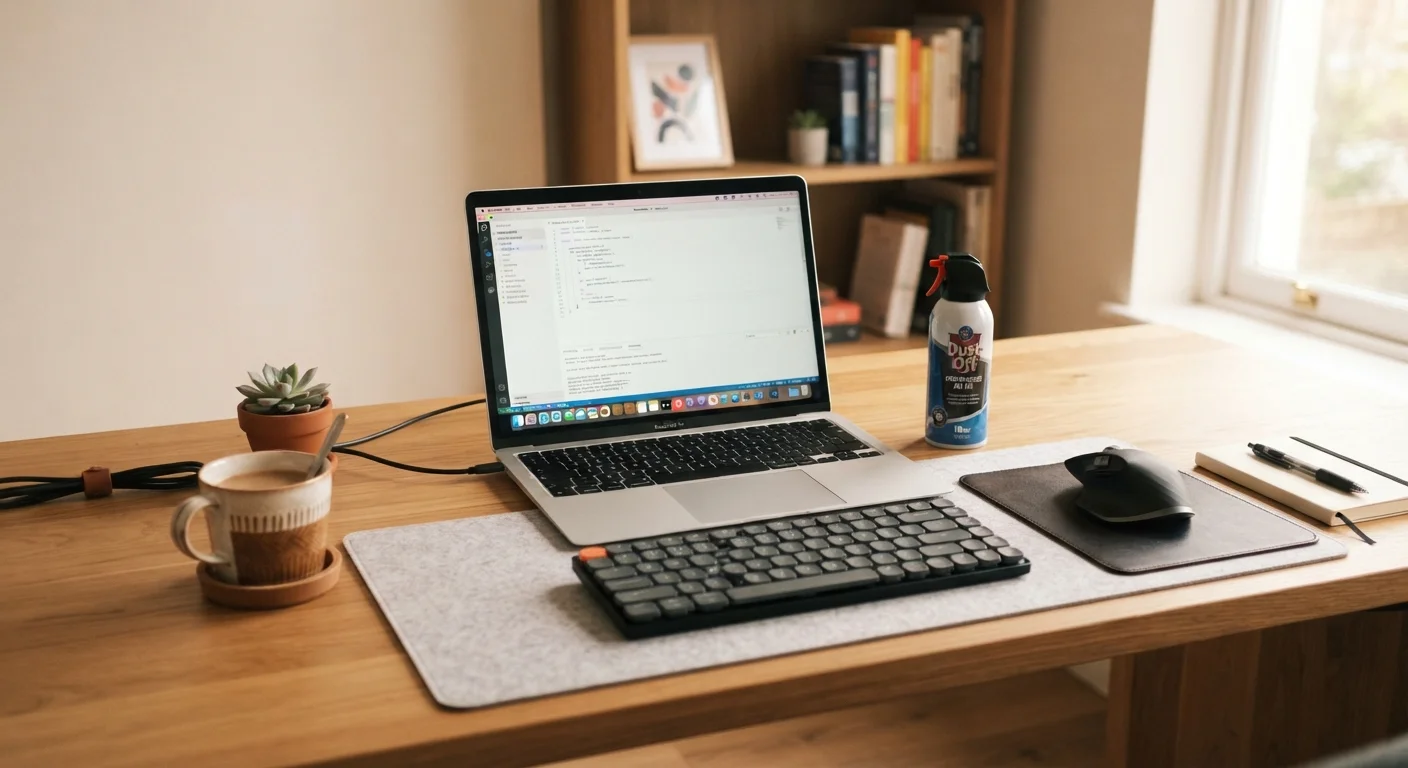
Clean vents and intake areas with compressed air every three to six months.
Dust accumulation restricts airflow and causes internal temperatures to rise, accelerating wear on processors, fans, and batteries. Regular cleaning is one of the most effective ways to prevent heat-related hardware failure.
Keep your primary storage drive below 80% of its total capacity.
Operating systems and applications need working space to function efficiently. Drives close to full capacity perform more slowly and, in the case of traditional hard drives, are more prone to errors during read and write operations.
Enable automatic software and operating system updates.
Updates patch security vulnerabilities and often include performance and stability improvements. Delaying them leaves systems exposed to known threats and may cause compatibility issues with newer software.
Always use the operating system's proper shutdown process rather than cutting power abruptly.
Abrupt power loss interrupts write operations that may be in progress, risking file system corruption and increasing stress on storage hardware. Proper shutdowns allow the OS to close processes cleanly.
Place laptops on hard, flat surfaces to maintain open airflow through bottom vents.
Soft surfaces like beds and couches compress or block the vents most laptops rely on for cooling, causing fans to run harder and internal temperatures to climb during normal use.
Periodically review and reduce programs that launch automatically at startup.
Many applications add themselves to the startup sequence during installation. These programs consume RAM and CPU cycles from the moment the computer boots, slowing down initial load times and reducing available resources for active tasks.
Thermal Health: Airflow and Dust Control
Heat is a computer's most persistent enemy. Processors, graphics chips, and batteries all degrade faster when they consistently run hot. The underlying cause is usually simple: blocked vents and accumulated dust force cooling fans to work harder while delivering less airflow.
Check Surface Temperature During Heavy Tasks
If your computer feels unusually hot to the touch during routine tasks - not just demanding workloads - it's often a sign that airflow is restricted. Free system monitoring utilities (available for both Windows and macOS) can display real-time CPU and GPU temperatures, giving you a clearer picture of whether cooling is working as intended. Sustained temperatures above 90°C (194°F) on a processor warrant investigation.
For desktop towers, compressed air (sold at most hardware and office supply stores) applied every three to six months through vent openings can remove the majority of dust buildup without opening the case. Laptops benefit from the same treatment directed at exhaust vents. Beyond cleaning, placement matters: laptops on soft surfaces like beds or couches block bottom vents entirely, raising internal temperatures significantly. A hard, flat surface - or a purpose-built laptop stand - keeps airflow paths open.
~70%
Of laptop failures attributed to thermal issues
Industry repair data consistently identifies overheating as a leading cause of premature component failure in portable computers.
3-5 years
Average lifespan gain from consistent maintenance
Hardware longevity estimates from IT management studies suggest well-maintained machines reliably outlast neglected equivalents by several years.
Storage and Software Hygiene
A storage drive that approaches full capacity behaves differently than one with ample free space. Operating systems rely on temporary working space to function smoothly, and drives - particularly traditional spinning hard disk drives - slow noticeably as they fill up. As a general guideline, keeping any drive below about 80% capacity supports more consistent performance. If your machine uses a traditional hard drive, understanding how it differs from a solid-state drive can inform decisions about upgrades or replacements down the road.
Software hygiene matters equally. Applications that launch at startup consume memory even when unused, and software that goes without updates accumulates security vulnerabilities. Most operating systems offer automated update scheduling - enabling it removes the need for manual tracking. Periodically reviewing startup programs and uninstalling software no longer in use can meaningfully reduce background resource consumption.
Power Habits and Long-Term Care
How a computer is powered on and off contributes to component longevity in ways that are easy to overlook. Frequent, abrupt power cuts - whether from unplugging without shutdown or from power surges - can corrupt file systems and stress storage hardware. A basic surge protector reduces risk from electrical spikes; for desktop machines used in areas with unstable power, an uninterruptible power supply (UPS) provides a buffer that allows safe shutdown during outages.
For laptops specifically, battery health is a factor. Keeping a laptop plugged in continuously at 100% charge for extended periods can accelerate battery degradation over time - most manufacturers now include battery management settings that limit charge to around 80% for units that stay connected to power most of the day. Consulting the documentation for your specific device will show whether this option is available.
Building these routines shares something with forming any durable habit: small, consistent actions tend to outlast ambitious one-time overhauls. Research on lasting habit formation suggests that tying new behaviors to existing routines - like pairing a monthly storage check with a recurring calendar event - dramatically improves follow-through.
When Hardware Age Outpaces Habits
Even well-maintained computers eventually reach a point where hardware limitations - rather than software or dust - become the primary constraint. Adding RAM or replacing a traditional hard drive with a solid-state drive are among the most impactful upgrades for aging machines, often delivering noticeable improvements for a fraction of replacement cost. These decisions depend on the specific machine and its upgrade options, so consulting the manufacturer's documentation or a qualified technician is worthwhile before purchasing components.