
SSD vs. HDD: The Storage Difference That Shapes Your Whole Computing Experience

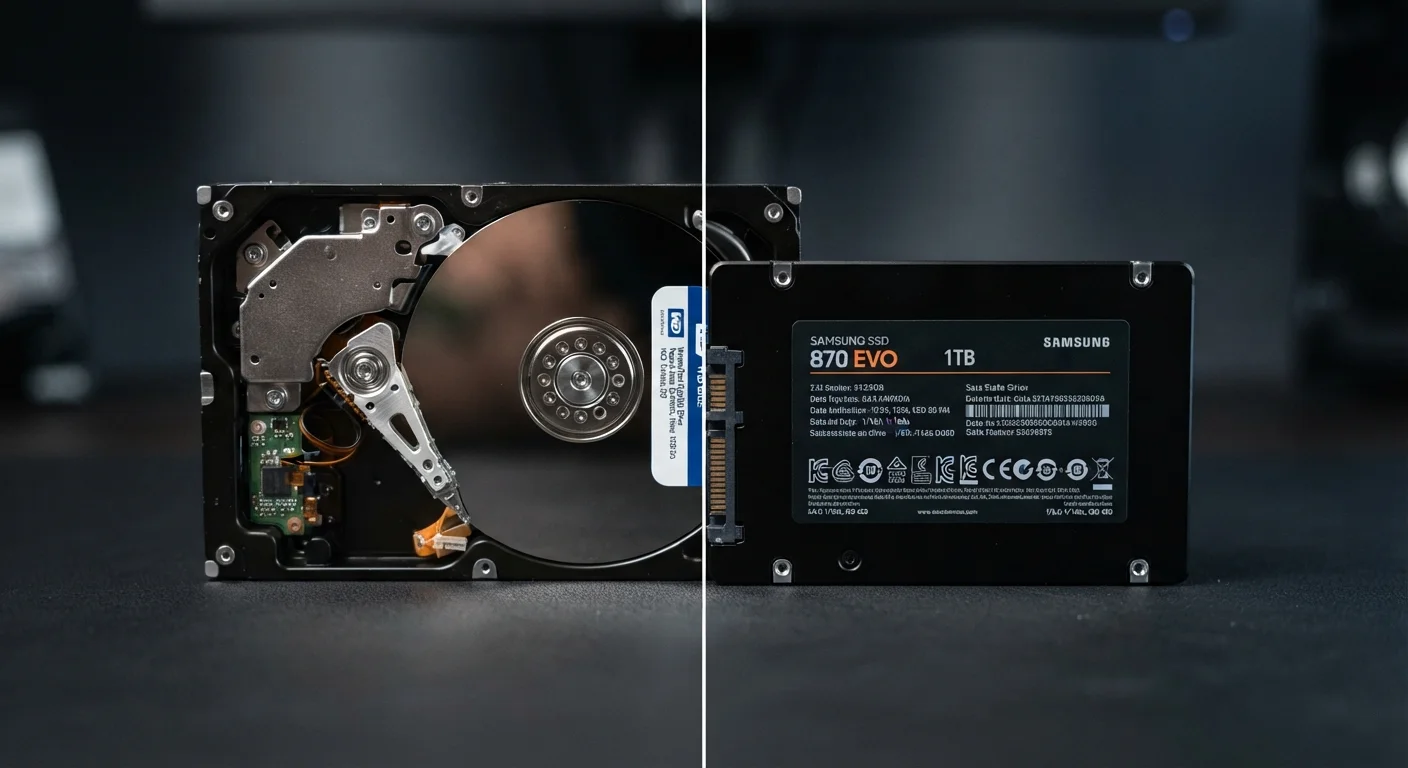
Key Takeaways
- SSDs use flash memory with no moving parts; HDDs use spinning magnetic platters and a read/write arm.
- SSDs are significantly faster for booting, launching apps, and transferring files than HDDs.
- HDDs generally offer more storage capacity per dollar, making them practical for mass storage needs.
- SSDs handle drops and vibration better than HDDs due to the absence of mechanical components.
- Most modern laptops ship with SSDs; HDDs remain common in desktop towers and external backup drives.
- Choosing the right drive depends on your priorities: speed and durability versus raw capacity and cost.
Option A
HDD (Hard Disk Drive)
The high-capacity, budget-friendly traditional choice.
Best for: Users who need large amounts of storage at the lowest possible cost and don't prioritize speed.
Option B
SSD (Solid-State Drive)
The fast, durable modern standard for everyday computing.
Best for: Anyone who wants a noticeably snappier, more responsive computer for daily tasks, work, or gaming.
If you want a fast, responsive everyday computer
SSD
SSDs dramatically reduce boot times, app launch delays, and file transfer waits - the difference is immediately noticeable in day-to-day use.
If you need to store large video libraries, archives, or backups cheaply
HDD
HDDs deliver far more terabytes per dollar, making them the practical choice for bulk storage where access speed is less critical.
If you use a laptop and care about durability
SSD
With no moving parts, SSDs are far more resistant to damage from bumps, drops, and vibration - a real advantage in a portable device.
If you're adding secondary storage to a desktop PC
HDD
A secondary HDD in a desktop is a cost-effective way to expand storage capacity without replacing a primary SSD.
If you're upgrading an aging laptop to breathe new life into it
SSD
Swapping an old HDD for an SSD is one of the most impactful single upgrades you can make to an older computer's performance.
How Each Drive Actually Works
Storage drives hold everything on your computer - the operating system, your applications, documents, photos, and more. But the two dominant technologies do the job in fundamentally different ways.
An HDD (Hard Disk Drive) stores data on spinning magnetic platters. A mechanical arm moves across those platters to read and write information, much like a record player needle on a vinyl disc. This mechanical process is inherently slower and more vulnerable to physical shock than its modern alternative.
An SSD (Solid-State Drive) stores data on interconnected flash memory chips - the same basic technology used in USB thumb drives, just faster and more sophisticated. Because there are no moving parts, an SSD can access any piece of data almost instantly, regardless of where it's physically located on the chip.
Understanding this distinction helps explain nearly every practical difference between them. For more on how storage interacts with other hardware specs like RAM and CPU, see our breakdown of what each spec actually does.
| Criterion | HDD | SSD |
|---|---|---|
| Technology | Spinning magnetic platters | Flash memory chips |
| Read/write speed | Slower (mechanical limits) | Much faster (near-instant access) |
| Boot time | Often 45-90+ seconds | Typically under 15 seconds |
| Cost per terabyte | Lower | Higher |
| Durability | Vulnerable to shock and vibration | More resistant to physical damage |
| Noise | Audible during operation | Silent |
| Weight | Heavier | Lighter |
| Typical use today | Backup drives, bulk storage | Primary drive in most modern PCs |
Speed, Durability, Cost, and Capacity - The Real Trade-offs
Speed: SSDs are substantially faster than HDDs across every common task. A system running on an SSD typically boots in seconds rather than a minute or more. Applications open almost immediately. Large file transfers that take minutes on an HDD can complete in seconds on a fast SSD. For everyday computing, this translates to a noticeably more fluid experience.
Durability: Because HDDs rely on mechanical parts, they're vulnerable to damage from drops, vibration, and even strong magnetic fields. SSDs have no moving parts to misalign or break, which makes them better suited to laptops and portable use. That said, SSDs are not indestructible - extreme temperatures and electrical surges can still cause failure.
Cost and capacity: HDDs remain significantly less expensive per gigabyte of storage. If you need several terabytes of space - for video editing projects, large photo archives, or offline backups - an HDD stretches your budget much further. SSDs have become more affordable over time, but large-capacity SSDs still carry a price premium. This trade-off is worth considering before any purchase, and thinking through longevity versus cost is a useful framework - explored further in our guide on durable vs. disposable product choices.
~5-10x
SSD speed advantage over HDD
Sequential read speeds on mainstream SATA SSDs typically reach 500-550 MB/s, compared to 100-150 MB/s on most consumer HDDs.
~$0.02-0.04
Typical HDD cost per gigabyte (USD)
Hard disk drives remain considerably cheaper per gigabyte than SSDs, which generally range from $0.07-0.12 per gigabyte at common retail capacities.
No moving parts
Key SSD durability advantage
The absence of mechanical components means SSDs are not affected by the same physical shock vulnerabilities that can cause HDD read/write head crashes.
Noise and heat: HDDs produce audible noise during operation and generate more heat due to their spinning components. SSDs operate silently and tend to run cooler, which can contribute to overall system stability over time.
Which Drive Belongs in Your Setup?
The right choice depends on what you're using your computer for and which trade-offs matter most to you.
If you're buying a laptop for work, school, or general daily use, an SSD is the more practical option. The speed improvement is tangible, and the durability advantage is meaningful for a device that gets carried around. Most current-generation laptops ship with SSDs as standard - if you're evaluating a model that still uses an HDD as its primary drive, that's worth noting as a real performance limitation. Our comparison of laptops vs. desktops covers how form factor intersects with these storage decisions.
If you're building or upgrading a desktop and need substantial storage capacity - say, for media production or local backups - a two-drive approach is common: an SSD for the operating system and primary applications, and a high-capacity HDD for bulk file storage. This hybrid setup captures the speed benefits of an SSD while keeping storage costs manageable.
For anyone maintaining an older machine, replacing an aging HDD with an SSD is one of the most effective single upgrades available. Pair that with good computer maintenance habits and a well-chosen drive can significantly extend a machine's useful life.
A Note on Drive Lifespan
Both HDDs and SSDs have finite lifespans, though they fail in different ways. HDDs can develop bad sectors or mechanical failures over time. SSDs have a rated number of write cycles - known as TBW (terabytes written) - after which performance may degrade. For most everyday users, either drive type will last several years of normal use. Regular backups remain essential regardless of which storage technology you use, since no drive is immune to eventual failure.