

Key Takeaways
- RAM determines how many tasks a computer handles simultaneously without slowing down.
- Storage capacity and type affect how quickly your computer starts up and opens files.
- The CPU's speed and core count govern how fast it completes complex calculations.
- More RAM and a faster CPU matter most for multitaskers and creative professionals.
- Understanding these three specs helps you avoid overpaying for power you don't need.
RAM, Storage, and Processing Power
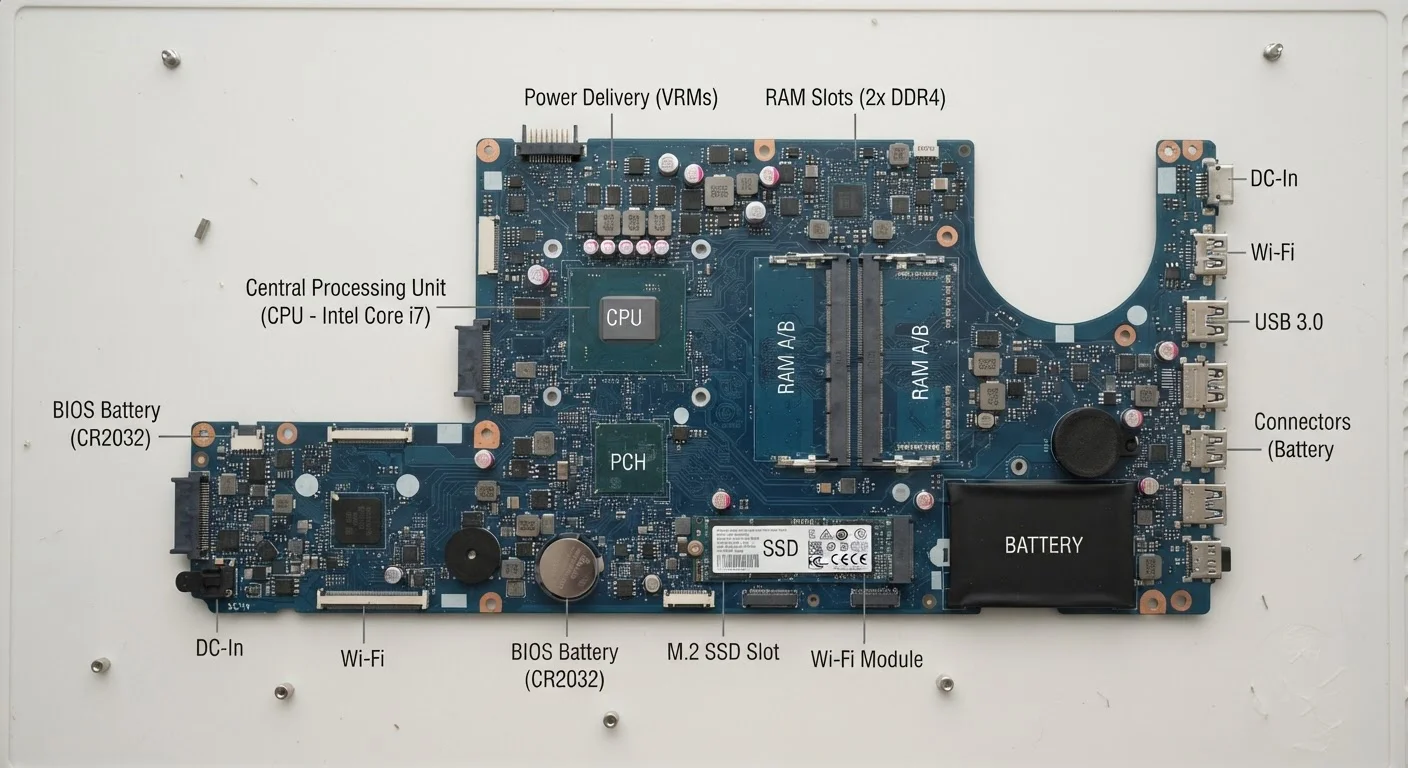
RAM (Random Access Memory), storage, and the processor (CPU) are the three core hardware specs that determine how fast, capable, and responsive a computer feels. RAM holds data your computer is actively using right now. Storage holds everything permanently - your files, apps, and operating system. The processor executes every calculation and instruction the computer performs.
These three components interact constantly: the CPU fetches data from storage into RAM, then processes it. Bottlenecks in any one component can limit the performance of the others.
RAM: Your Computer's Active Workspace
RAM - short for Random Access Memory - is the temporary workspace where your computer holds everything it's actively doing. When you open a browser, load a spreadsheet, or switch between apps, that data lives in RAM. It's fast, volatile (meaning it clears when the power cuts), and directly tied to how smoothly your machine multitasks.
The practical effect of RAM is most obvious when you're juggling tasks. With limited RAM, your computer starts offloading active data to slower storage - a process called paging - and performance drops noticeably. With ample RAM, apps stay ready and responsive.
Match Specs to Your Actual Workload
Before comparing RAM or CPU figures, write down what you actually do on a computer. Light users - email, documents, streaming - rarely need more than 8GB RAM and a mid-range processor. Identifying your real use case prevents overspending on specs that won't improve your daily experience.
For a deeper look at how RAM interacts with other phone and tablet specs, see our plain-English phone spec glossary - the same principles apply, scaled differently.
Storage: Where Everything Lives Permanently
Storage holds your operating system, applications, and every file you save - and it retains all of that when the computer is powered off. The two dominant storage technologies are SSDs (solid-state drives) and HDDs (hard disk drives), and the difference between them is substantial.
SSDs use flash memory with no moving parts, delivering dramatically faster read and write speeds. The result: a computer with an SSD boots in seconds, opens applications almost instantly, and transfers files quickly. HDDs use spinning magnetic platters and are considerably slower, though they typically offer more capacity per dollar.
~10×
Speed advantage of SSD over typical HDD
Sequential read speeds for consumer SSDs commonly reach 500-7,000 MB/s, compared to 80-160 MB/s for mechanical hard drives, depending on the specific drive.
16GB
RAM commonly recommended for multitaskers
Industry hardware guidelines broadly suggest 16GB as a comfortable baseline for users running multiple productivity apps, video calls, and browser tabs concurrently.
4-16
Typical CPU core range in consumer laptops
Modern mainstream laptop processors range from 4-core configurations suited to everyday tasks up to 16-core chips designed for demanding professional workloads.
Capacity matters too, but it's easy to conflate storage size with performance. A large HDD can feel sluggish compared to a smaller SSD. For a detailed breakdown of how these technologies compare, our SSD vs. HDD explainer walks through speed, durability, and cost side by side.
Processing Power: The Engine Behind Every Action
The CPU (Central Processing Unit) is the chip that executes instructions - every calculation, every rendered web page, every file compression. Two numbers dominate CPU marketing: clock speed (measured in GHz) and core count.
Clock speed reflects how many instruction cycles the chip completes per second. A higher GHz generally means faster single-threaded performance - which matters for tasks that run sequentially. Core count reflects how many independent processing units the chip contains; more cores help with tasks that can run in parallel, like video rendering or large data processing.
“Most people buying a computer focus on the processor because it's the most marketed spec, but for typical workloads, adding RAM or switching to an SSD will make a bigger difference to the experience they actually have every day.”
— A hardware engineer with experience in consumer PC design, Consumer PC hardware specialist
For most everyday users, the CPU becomes a bottleneck only in demanding scenarios. Browsing, streaming, and office productivity are rarely CPU-limited - RAM and storage type tend to have a more visible impact on day-to-day feel. If you're evaluating a full system purchase, our laptop vs. desktop breakdown puts CPU choices in the context of portability and form factor.
How These Three Specs Work Together
RAM, storage, and CPU don't operate in isolation - they form a chain. The processor requests data, which travels from storage into RAM, where the CPU can access it rapidly. If any link in that chain is slow, the whole system feels sluggish.
A fast CPU paired with insufficient RAM will stall waiting for data. Plenty of RAM and a fast processor can't compensate for a slow mechanical hard drive on boot. Matching these specs to your actual workload - rather than chasing the highest numbers - is the practical goal when evaluating any computer.
If you're ready to apply this knowledge to a real purchase decision, our end-to-end laptop buying guide ties specs like these into the full picture, from screen resolution to battery life. And for strategies on avoiding spec overkill without sacrificing performance, our product research tips offer a practical framework.
Upgradeability Varies by Device
Not all computers allow you to upgrade RAM or storage after purchase. Many thin laptops solder these components directly to the motherboard. If future-proofing matters to you, confirm upgrade options before committing to a specific model - or choose higher specs at purchase time.